
My Products include the products that feed data into LogPoint SOAR. LogPoint SOAR can establish connection with the product only after parameters required by the product to authenticate and authorize are provided.
Go to Settings >> SOAR Settings from the navigation bar and click My Products to view all the product instances configured for LogPoint SOAR. From the My Products page, you can add, edit, delete, and export product instances. You can also filter the product instances based on their Product Type, Product Name, and Active Products Only.
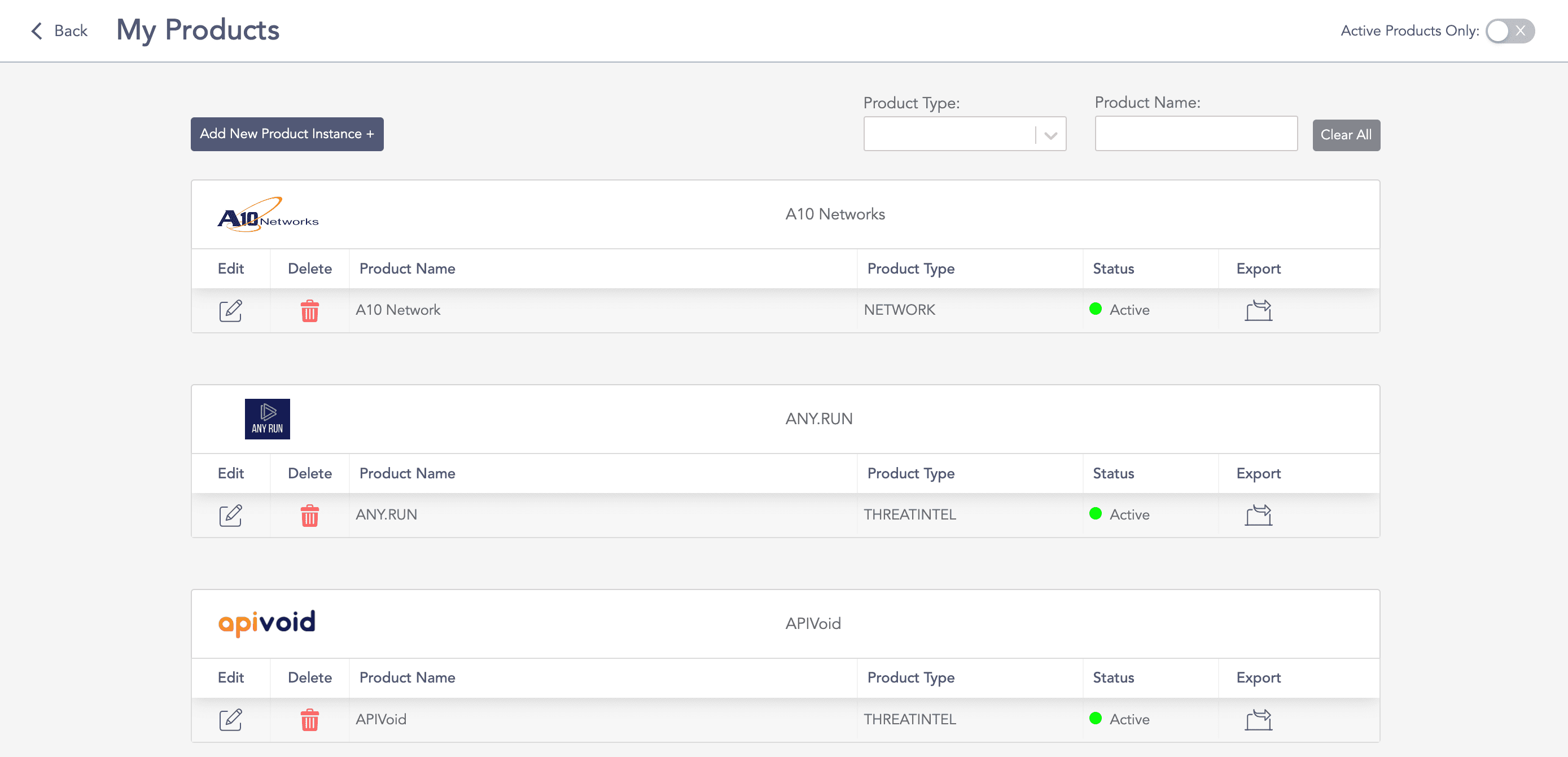
My Products Page
Go to Settings >> SOAR Settings from the navigation bar and click My Products.
Click Add New Product Instance +.
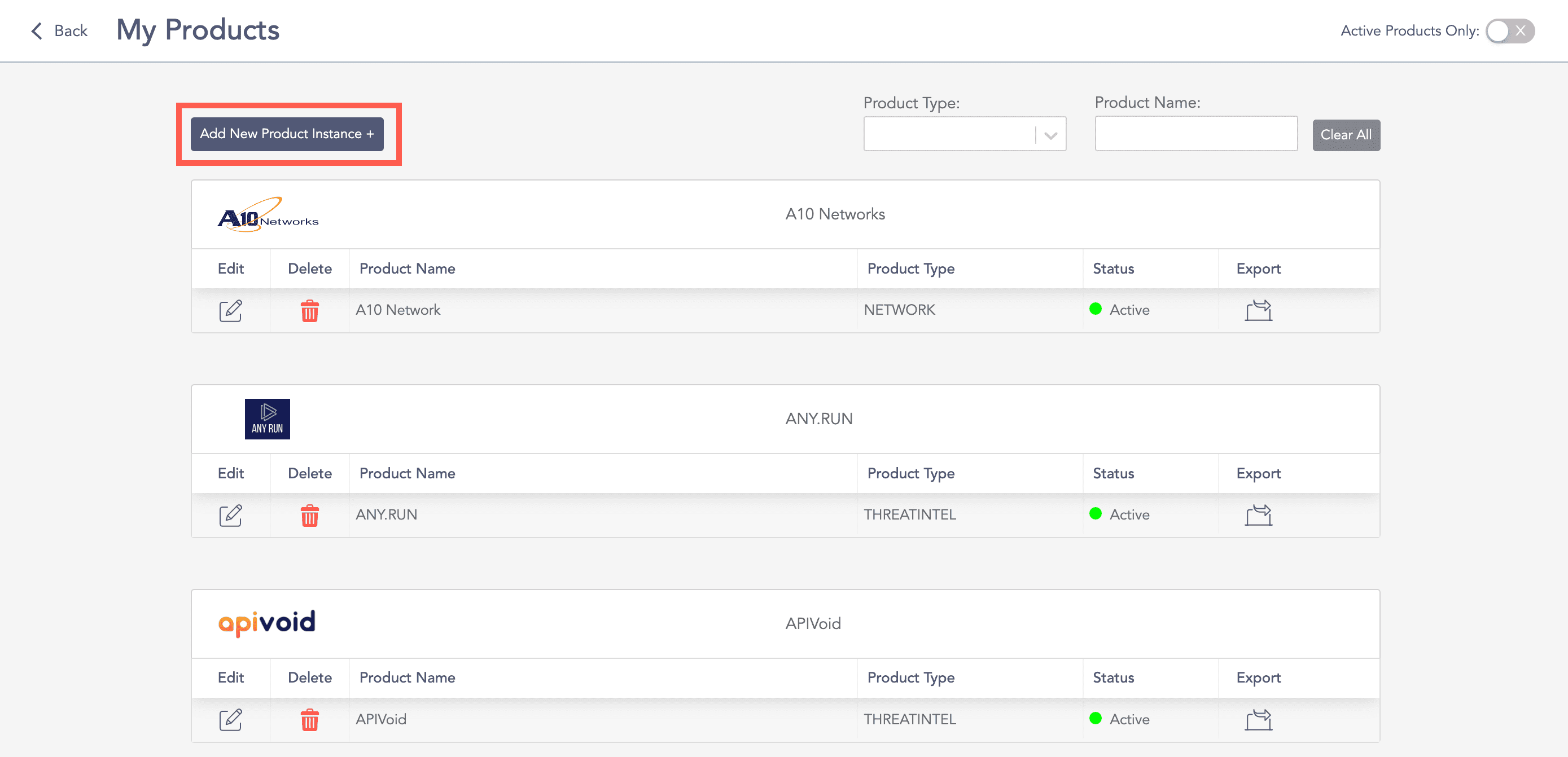
Adding a Product Instance
Find the required Vendor and click the Add icon for the relevant Product.
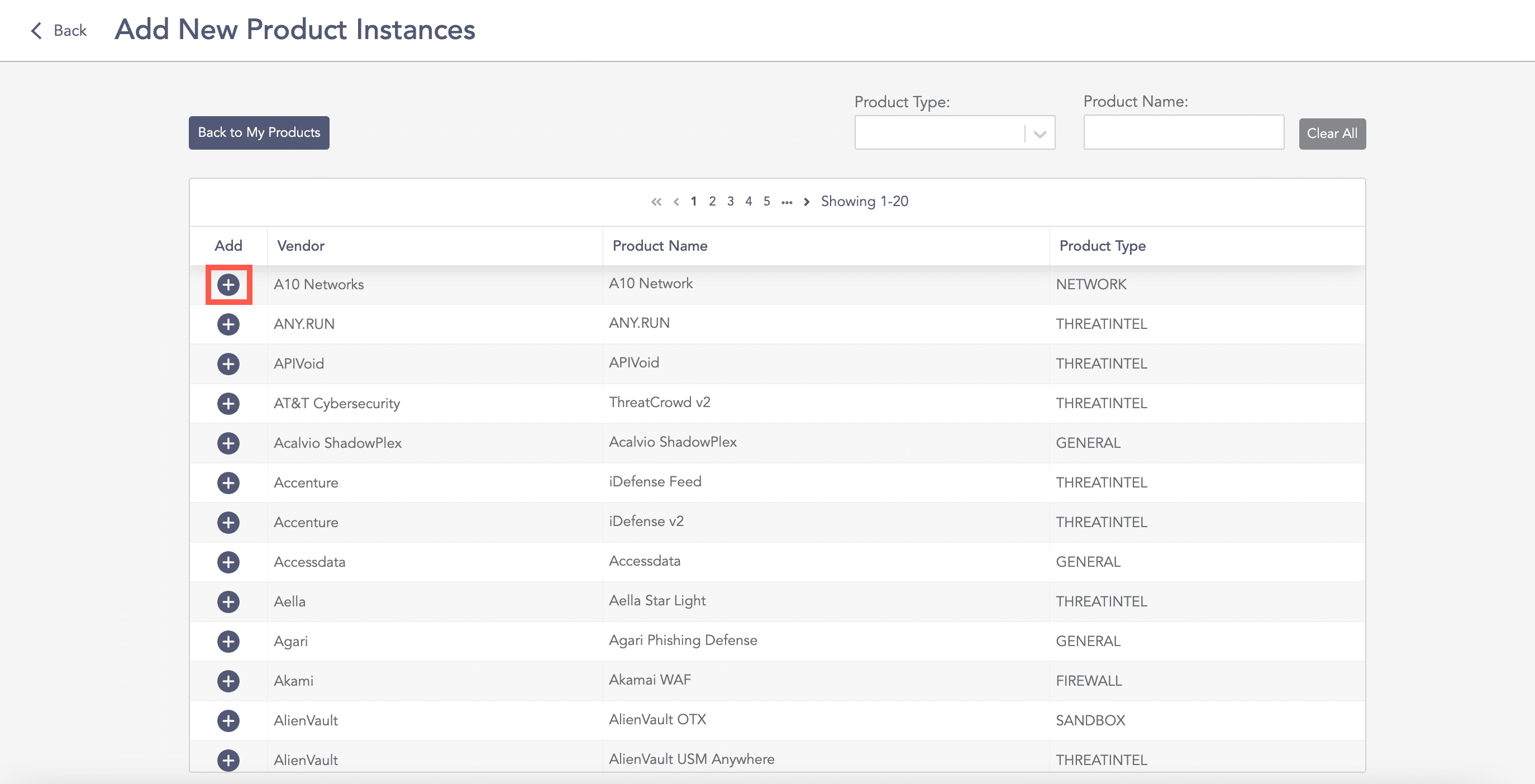
Add Product Instance Icon
Enter a Name.
Enter the necessary information.
Activate the product instance if required.
Click Add.
Go to Settings >> SOAR Settings from the navigation bar and click My Products.
Click the Edit icon.
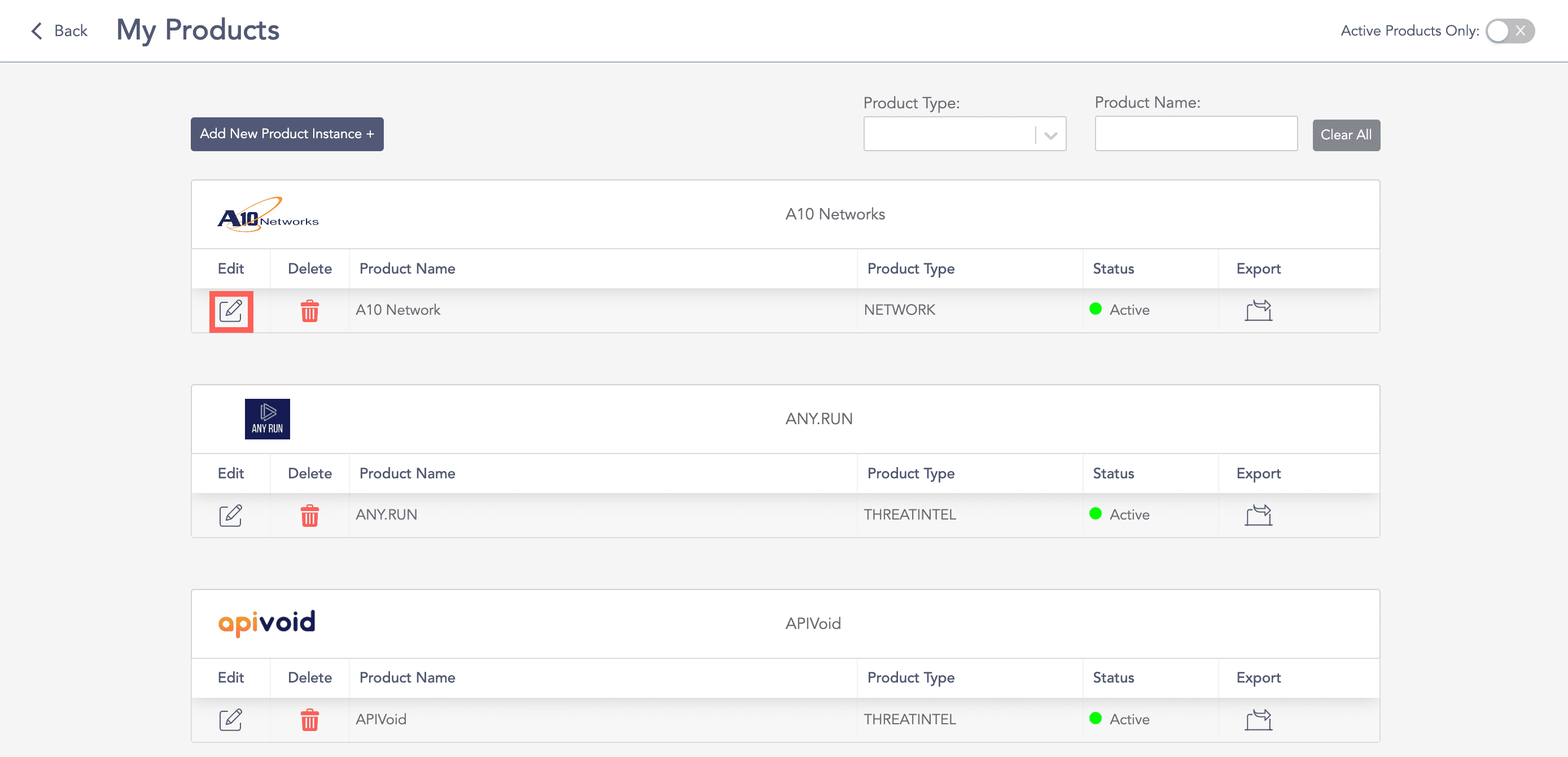
Edit Product Instance Icon
Edit the required information.
Click Update.
Go to Settings >> SOAR Settings from the navigation bar and click My Products.
Click the ( ) icon.
Click Delete.
Go to Settings >> SOAR Settings from the navigation bar and click My Products.
Click the ( ) icon. The exported data is then downloaded in the .zip file format.